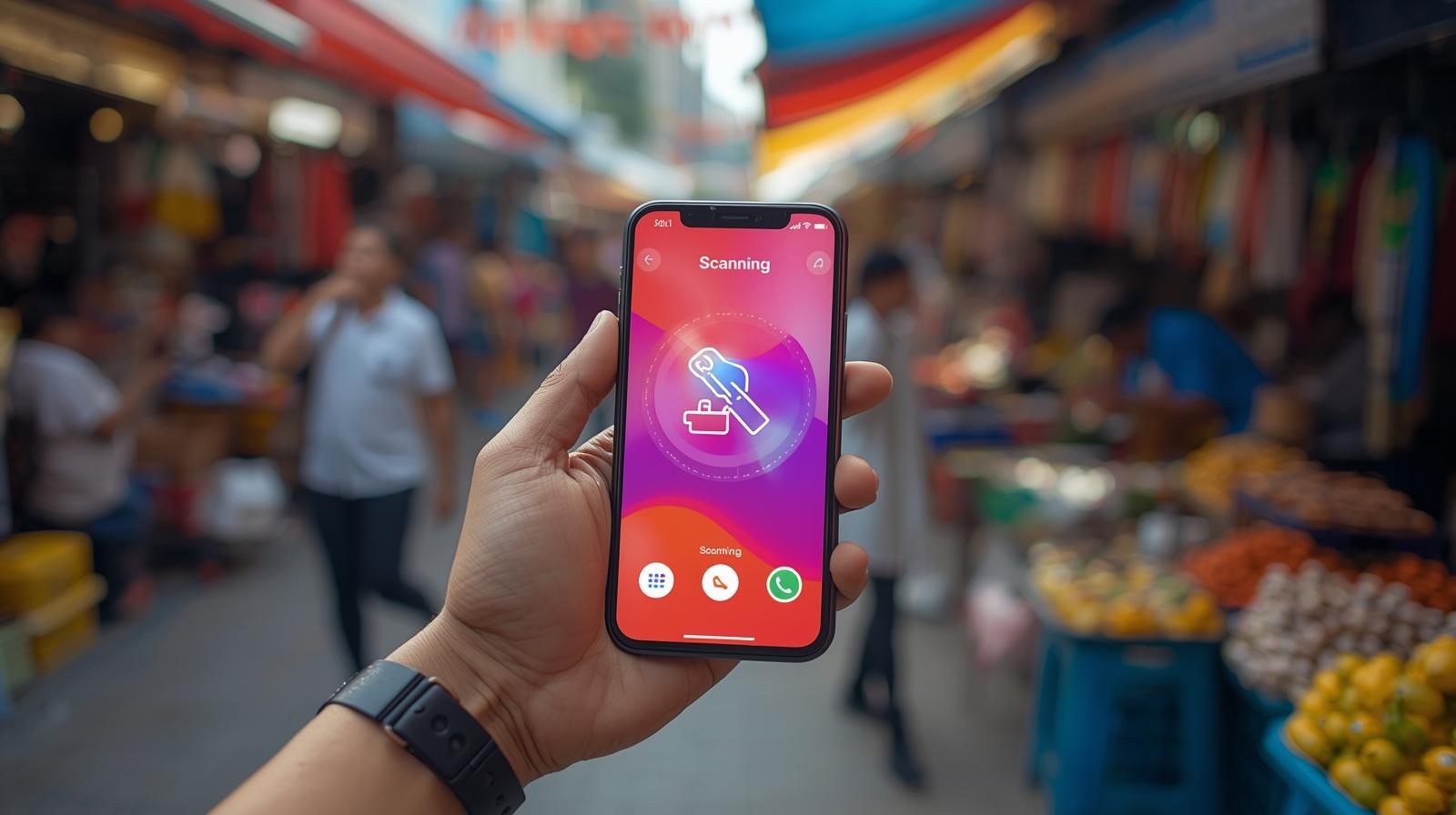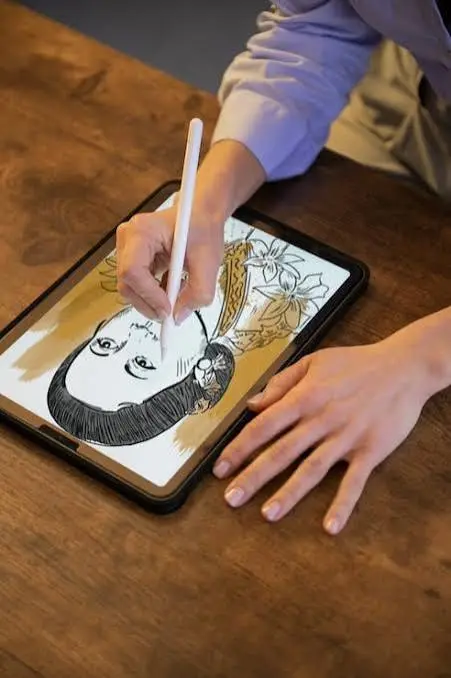
Smartphones are no longer limited to making calls, sending messages, and browsing the internet. Today, they offer many creative features that allow users to explore their artistic skills. One interesting activity you can enjoy on your smartphone is digital drawing. If you are wondering how to draw a picture with our mobile device, you can easily get started with the help of drawing applications and a few simple techniques.
You do not need an expensive computer, professional drawing equipment, or advanced artistic knowledge to create beautiful pictures. Your Android phone or iPhone can become a small digital art studio. Whether you want to draw cartoons, portraits, landscapes, or simple sketches, mobile drawing applications make the process easier and more enjoyable.
Table of Contents
Why Use a Mobile Device for Drawing?
Drawing on a mobile device has become popular because smartphones are convenient and easy to carry. You can practice your drawing skills whenever you have free time.
Here are some important benefits:
- Easy accessibility: You can draw pictures anywhere without carrying traditional drawing materials.
- Beginner-friendly tools: Most drawing applications provide simple brushes, colors, and editing options.
- Save your artwork: You can save your drawings digitally and access them whenever needed.
- Easy corrections: If you make a mistake, you can use the undo and eraser tools.
- Share your creativity: You can share your finished artwork through social media and messaging applications.
These benefits make mobile drawing a useful activity for students, beginners, and professional artists.
Best Applications for Drawing Pictures on Mobile
Choosing the right application is an important step when learning how to draw a picture with our mobile device. Several drawing applications are available for Android and iOS smartphones.
1. Sketchbook
Sketchbook is a popular drawing application suitable for beginners and experienced artists. It offers different brushes, pencils, markers, and other creative tools.
Its simple interface helps users concentrate on their artwork without dealing with complicated settings. You can also use layers to organize different parts of your drawing.
2. ibis Paint X
ibis Paint X is another useful application for creating digital artwork. It provides a wide collection of brushes, filters, and editing features.
Users can create sketches, anime characters, cartoons, and detailed illustrations. It is available for Android and iOS devices, although some features may require payment.
3. MediBang Paint
MediBang Paint is especially useful for people interested in comic illustrations and manga-style drawings. It includes drawing tools, coloring options, and features for creating comic panels.
It also supports cloud-based workflows, allowing users to continue their projects across supported devices.
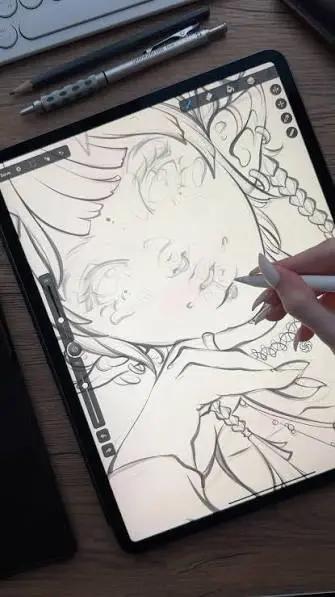
How To Draw A Picture With Our Mobile Device Step by Step
If you are a beginner, follow these simple steps to create your first digital drawing.
Step 1: Download a Drawing Application
First, open the Google Play Store on your Android smartphone or the Apple App Store on your iPhone. Search for a drawing application such as Sketchbook or ibis Paint X.
Download and install the application on your device. Choose an application that matches your drawing requirements.
Step 2: Open the Application and Create a New Canvas
After installing the application, open it and select the option to create a new drawing.
You will usually find different canvas sizes and screen orientations. Select a suitable canvas size depending on the picture you want to create.
Step 3: Select a Brush or Pencil
Most drawing applications provide different types of brushes and pencils. Beginners can start with a basic pencil tool to create simple outlines.
You can adjust the brush size and thickness according to your requirements. Experiment with different tools to understand how they work.
Step 4: Start Drawing Your Picture
Now you can begin creating your picture using your finger or a compatible stylus.
Start with simple shapes such as circles, lines, rectangles, and curves. Once you become comfortable with these shapes, try drawing flowers, trees, houses, animals, or cartoon characters.
Remember that you do not need to create a perfect picture on your first attempt. Regular practice will help improve your drawing skills.
Step 5: Add Colours to Your Drawing
After completing the basic outline, choose suitable colours from the colour palette.
You can use different shades to make your picture more attractive. Most drawing applications also provide colour-filling tools that help you fill larger areas quickly.
Step 6: Use Layers and Editing Tools
Layers are useful when creating detailed digital artwork. They allow you to work on different parts of a picture separately.
For example, you can keep the background on one layer and the main drawing on another. This makes editing easier without affecting the entire picture.
Step 7: Save Your Finished Picture
Once your drawing is complete, use the save or export option available in the application.
You can usually save your artwork in formats such as PNG or JPEG. After saving, you can share it with friends or upload it to your favourite social media platforms.
Useful Tips for Better Mobile Drawing
If you want to improve your digital drawing skills, consider following these simple tips:
- Start with simple pictures: Practice drawing basic objects before moving to complicated designs.
- Use a stylus: A compatible touchscreen stylus can provide better control when creating fine details.
- Practice regularly: Spend at least 10 to 15 minutes every day improving your drawing skills.
- Explore different brushes: Try pencil, ink, watercolour, and other brush styles.
- Use reference images: Looking at photographs can help you understand shapes, proportions, and colours.
- Learn layer management: Understanding layers can make complex drawings easier to edit.
Following these tips can help you become more confident and creative.
Can We Draw Pictures on Mobile Without a Stylus?
Yes! You do not need a special pen or drawing tablet to create pictures on your smartphone. Most drawing applications allow you to use your finger directly on the touchscreen.
However, drawing with your finger may be slightly difficult when working on small details. A compatible stylus can provide better precision and control.
If you are just starting, using your finger is completely fine. You can purchase a stylus later if you want to improve your drawing experience.
Conclusion
Learning how to draw a picture with our mobile device is a simple and enjoyable way to explore your creativity. With the right drawing application, basic tools, and regular practice, anyone can start creating digital artwork using a smartphone.
Applications such as Sketchbook, ibis Paint X, and MediBang Paint provide useful features for beginners and experienced artists. Start with simple sketches, experiment with different brushes, and gradually improve your skills. Your smartphone can become a creative platform where you can turn your imagination into beautiful digital pictures.