How to Get More Phone Storage? You’re in the middle of recording a concert, snapping a photo of a rare sunset, or installing a critical system update, and that dreaded gray notification slides down: “Storage Almost Full.”
Your immediate instinct? Panic-delete 20 random photos of your lunch and uninstall that airline app you haven’t opened since last year. You head back to your settings menu expecting breathing room, only to see that you freed up a miserable 240 MB.
Table of Contents
Here is the inconvenient truth: your camera roll and active apps are rarely the real reason your phone is running out of space.
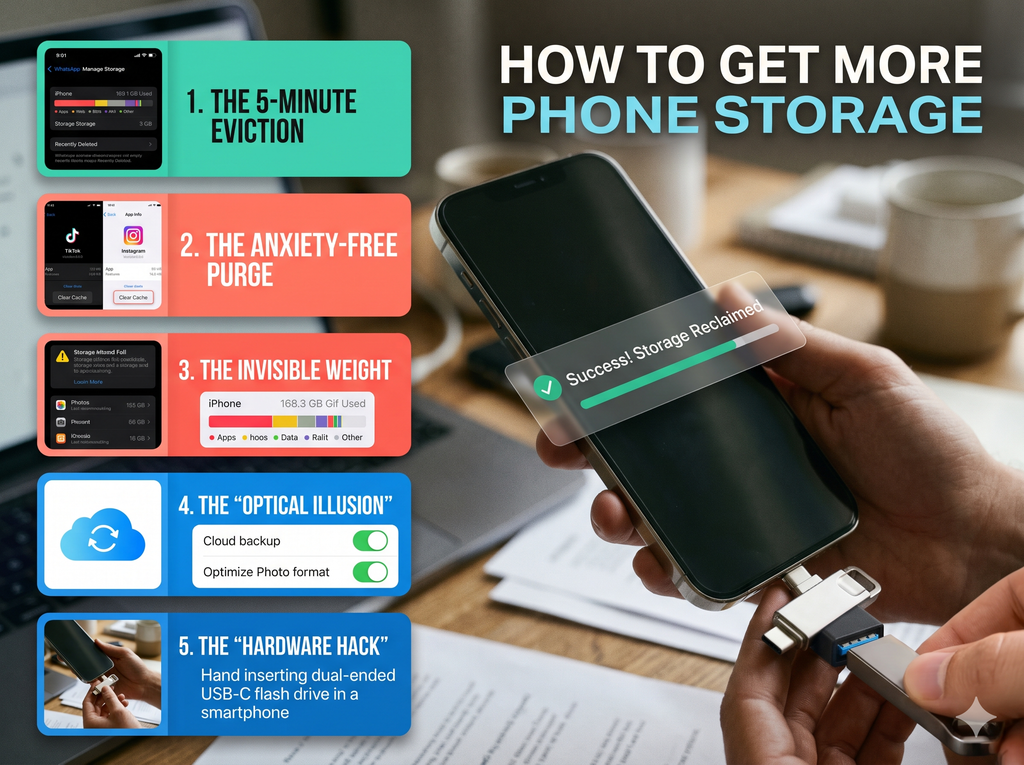
The true culprits are invisible data hoarders quietly stacking up 15 to 30 gigabytes behind innocent-looking menus. Before you spend money upgrading your phone or commit to another monthly cloud subscription, follow this step-by-step audit. You can reclaim anywhere from 10 GB to 40 GB in under ten minutes—without sacrificing a single memory.
1. How to Get More Phone Storage: The 60-Second Wins (Instant 5–15 GB)
Let’s start with immediate results. These two hidden corners hold massive files that you have likely already forgotten about.
Stop Messaging Apps From Hoarding Forwarded Files
If you are active on WhatsApp, Telegram, or similar chat apps, your phone is silently downloading and archiving every single meme, video clip, and greeting card sent across your personal and group chats.
- The Fix in WhatsApp: Open WhatsApp and tap Settings $\rightarrow$ Storage and Data $\rightarrow$ Manage Storage.
- Look at the top banner labeled “Larger than 5 MB.” This section gathers long video forwards, presentations, and screen recordings. Review this list and delete the heavy forwards you don’t need.
- Next, scroll down to your chat list: you will immediately see which specific group conversation is quietly occupying 8 GB of your internal memory.
- The Long-Term Prevention: Go to Settings $\rightarrow$ Storage and Data $\rightarrow$ Media Auto-Download, and switch Photos, Audio, and Video to “Never” (or Wi-Fi only). Make downloading media a deliberate choice rather than an automated process.
Empty the “Recently Deleted” Trap
When you tap the trash can icon on a photo or video, it does not leave your device. To protect users from accidental taps, both iOS and Android route deleted items into a staging folder where they sit untouched for 30 days.
- On iPhone: Open the Photos app, scroll to the bottom under Utilities, tap Recently Deleted, authenticate with Face ID/passcode, tap the three dots in the top corner, and select Delete All.
- On Android (Google Photos / Samsung Gallery): Open your Gallery app, navigate to Collections or Library, tap Trash / Bin, and choose Empty.
If you haven’t cleaned this folder recently, this step alone can return 3 to 10 GB instantly.
2. How to Get More Phone Storage: The Risk-Free Cleanup
Many people avoid touching their app settings out of fear: “If I clear data, will it wipe my chat history or sign me out of my accounts?”
Understanding the distinction makes safe space management easy:
- Clear Cache (100% Safe): Cache consists of temporary scratchpad files—web scripts, album artwork, and video thumbnails downloaded so pages load slightly faster. Clearing cache never deletes personal files or log-in sessions; it simply forces the app to fetch fresh copies when needed.
- Clear Storage / Data (Proceed with Caution): This resets an application back to its factory-installed state, wiping saved login credentials, local game saves, and offline databases.
Target the Heavy Social Feeds
Apps like TikTok, Instagram, Snapchat, and web browsers are notorious for letting cache files swell to 5–8 GB each.
- On Android: Go to Settings $\rightarrow$ Apps $\rightarrow$ [Select App, e.g., Chrome or TikTok] $\rightarrow$ Storage $\rightarrow$ Clear Cache.
- On iPhone: iOS manages app cache automatically, but many individual apps provide internal clear buttons. For instance, open TikTok $\rightarrow$ Profile $\rightarrow$ Settings and Privacy $\rightarrow$ Free Up Space $\rightarrow$ Clear Cache.
3. How to Get More Phone Storage: Forgotten Offline Media
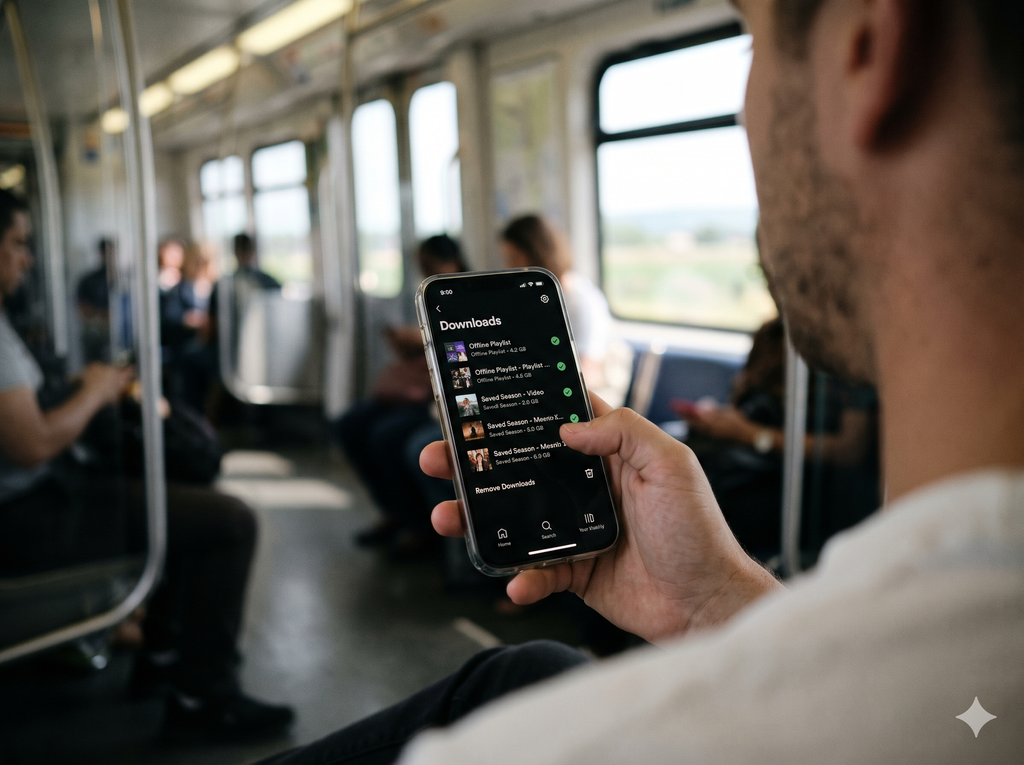
Offline media is often the most overlooked storage drain on modern smartphones.
Think back over the past two years:
- How many Spotify or Apple Music playlists did you set to “Download Offline” before a long flight?
- How many Netflix or Prime Video episodes did you save for a road trip and never circle back to watch?
- How many multi-hour podcast episodes auto-downloaded over Wi-Fi while you were asleep?
Streaming apps keep high-bitrate video and lossless audio stored in your phone’s memory until you manually remove them.
- Audit Netflix / Prime Video / Disney+: Open each streaming app, head to the Downloads tab, and tap “Delete All Downloads.” A single season of an HD series can quietly occupy 8 GB to 14 GB.
- Audit Music & Podcasts: In Spotify, open your library, tap the Downloaded filter pill, and check whether old playlists are taking up valuable space. In the Apple Podcasts or Pocket Casts app, head to settings and toggle Remove Played Downloads.
4. How to Get More Phone Storage: ( Modern Cloud & Compression Tricks )
Photos and 4K videos naturally occupy significant space over time, but you do not need to delete them to keep your phone running smoothly.
Switch to High-Efficiency Formats
Modern smartphones feature camera sensors capable of capturing photos in raw, high-resolution formats. Unless adjusted, a single minute of 4K video recorded at 60 fps can eat up nearly 500 MB.
Make sure your phone uses modern compression algorithms (HEIF for images, HEVC for videos):
- On iPhone: Go to Settings $\rightarrow$ Camera $\rightarrow$ Formats and select High Efficiency.
- On Android: Open the Camera App $\rightarrow$ Camera Settings (Gear Icon) $\rightarrow$ Advanced Video Options, then toggle on High Efficiency Video (HEVC) and High Efficiency Pictures.
This reduces incoming file sizes by roughly 40–50% without any noticeable drop in visual clarity.
Let the Cloud Do the Heavy Lifting
If you use cloud backup services like Google Photos or Apple iCloud, let them manage physical device storage on your behalf:
- Google Photos “Free Up Space”: Open Google Photos, tap your profile avatar in the upper right corner, and select Free up [X] GB. The app scans your library, identifies images and videos that are already safely backed up to the cloud, and removes only the local, on-device copy. Your photos remain visible and searchable inside the app.
- Apple “Optimize iPhone Storage”: Go to Settings $\rightarrow$ [Your Name] $\rightarrow$ iCloud $\rightarrow$ Photos, and check Optimize iPhone Storage. This keeps lightweight thumbnails on your device for immediate viewing, while pulling full-resolution files down from iCloud only when you choose to edit or share them.
5. How to Get More Phone Storage: Enable Native System Automations
Rather than manually running maintenance routines every weekend, take advantage of the automated management tools built into your phone’s operating system.
| Feature | Platform | Where to Find It | What It Does |
| Offload Unused Apps | iOS | Settings $\rightarrow$ App Store | Removes the underlying app binary when storage is low, but keeps your documents, data, and desktop icon intact. |
| Auto-Archive Apps | Android | Google Play Store $\rightarrow$ Profile $\rightarrow$ Settings $\rightarrow$ General | Automatically archives rarely used apps, saving up to 60% of their storage footprint without losing your saved data. |
| Smart Storage | Android | Settings $\rightarrow$ Storage | Automatically discards local copies of backed-up photos and videos older than 60 or 90 days when free capacity drops below a set threshold. |
6. How to Get More Phone Storage: (No Monthly Subscriptions)
If your device is limited to a smaller base storage tier (like 64 GB or 128 GB) and you prefer not to pay recurring cloud subscription fees, consider a physical hardware solution: a Dual-Ended USB-C Flash Drive.
Thumb drives equipped with both standard USB-A and USB-C connectors (such as the SanDisk Ultra Dual Drive) plug directly into Android phones and modern iPhones.
- Plug the drive into your phone’s charging port.
- Open the Files app (iOS) or Files by Google (Android).
- Select your heaviest video folders, hit Move to, and pick the external drive.
You can offload 40 GB of family vacation clips in a matter of minutes, store the drive safely in a drawer or on your keychain, and keep your phone’s internal hardware lean, fast, and responsive.
Your 2-Minute Monthly Habit
Clearing out phone storage shouldn’t mean spending an entire afternoon stressing over which personal memories to discard.
Save yourself future headaches by building this quick two-minute habit into your routine at the start of each month:
- Empty your Recently Deleted photo folder.
- Check your WhatsApp / Telegram Storage Manager for forwarded video clutter.
- Clear the cache on your two most-used social media feeds.
Reference: sammobile
Also Read: How To Expand Phone Storage Without SD Card: 7 Powerful Tips You’ll Love
Keep these simple habits consistent, and you will never have to worry about the “Storage Almost Full” pop-up interrupting a great shot again.