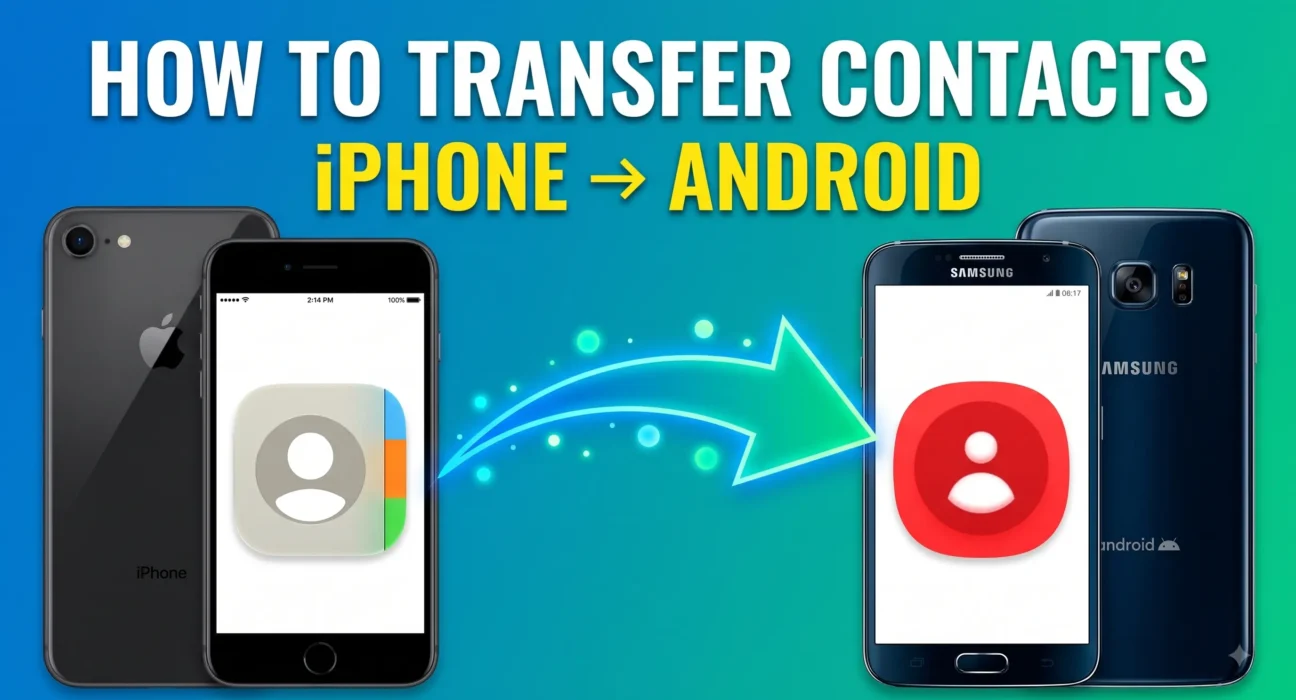
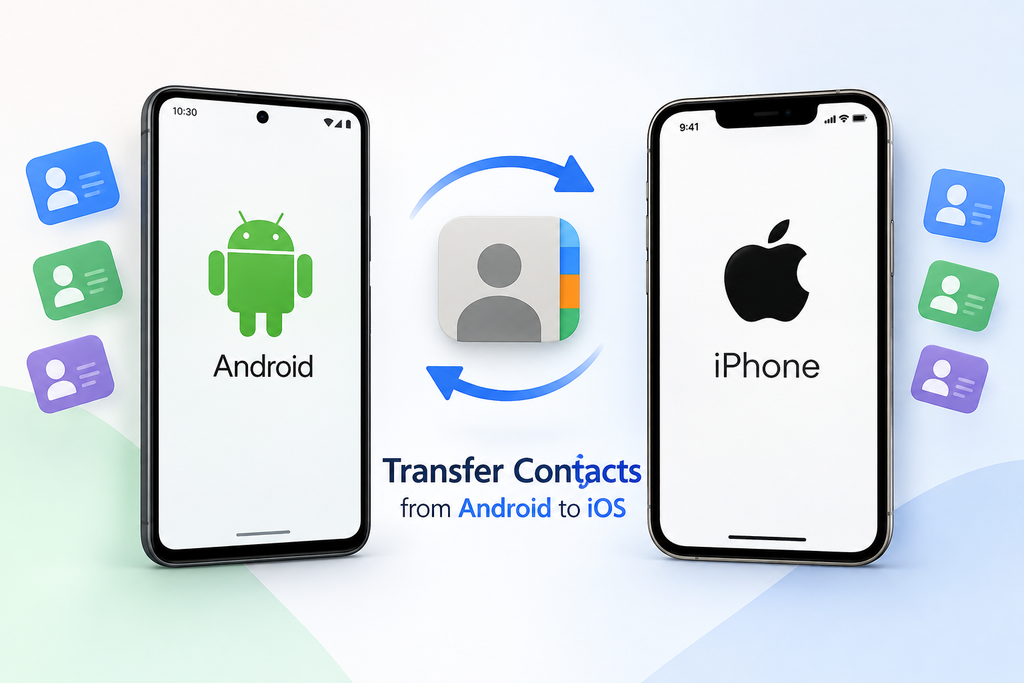
Transfer contacts between Android and iPhone without manually entering every number. The fastest option for many people is to use your Google Account: if your contacts are already saved to Google, simply add the same account to the other phone and turn on contact syncing. (Google Support)
If you’re switching phones completely, you can also use Apple’s Move to iOS, Android’s built-in transfer tools, a cable, or a .VCF contact file.
Table of Contents
Quick comparison
| Method | What you need | Speed | Best for |
|---|---|---|---|
| Google/Gmail | Google Account | Fast | Contacts already stored in Google |
| Move to iOS | Android + new iPhone | Fast | Android → iPhone during setup |
| Android Switch | iPhone + new Android | Fast | iPhone → Android |
| USB cable | Compatible cable/adapter | Very fast | Large transfers |
| Bluetooth | — | — | Not supported for normal cross-platform contact transfer |
Android to iPhone
Best for: Moving contacts from an Android phone to a new or existing iPhone.
If your Android contacts are already synced to Google, the easiest method is to add that Google Account to your iPhone. If you’re setting up a new iPhone and want to move more than contacts, use Apple’s Move to iOS.
Option 1: Use Google Contacts
- On your iPhone, open Settings.
- Go to Apps → Contacts → Contacts Accounts or Add Account, depending on your iOS version.
- Select Google.
- Sign in with the Google Account containing your contacts.
- Turn on Contacts.
- Open the iPhone’s Contacts app and wait for the contacts to appear.
Google confirms that contacts synced to a Google Account can be synchronized with the iPhone’s Contacts app. (Google Support)
Option 2: Use Move to iOS
If you’re setting up the iPhone from scratch, Apple’s Move to iOS method can transfer contacts along with other supported data.
- Charge both phones and connect them to Wi-Fi.
- Install Move to iOS on the Android phone.
- Start setting up the iPhone.
- On the Transfer Your Apps & Data screen, choose From Android.
- Open Move to iOS on Android.
- Enter the code displayed by the iPhone.
- Select Contacts and any other data you want to transfer.
- Leave both phones alone until the transfer finishes.
Apple and Google both document Move to iOS as an Android-to-iPhone transfer method. A compatible cable can also be used, and Google notes that a wired connection can be more reliable than Wi-Fi. (Google Support)
iPhone to Android wirelessly
Best for: Moving contacts from an iPhone to a new Android phone without using a cable.
Modern Android transfer tools can move contacts from an iPhone wirelessly, although the exact screens vary by Android manufacturer and version.
- Start setting up your new Android phone.
- Choose the option to copy or transfer data from an iPhone.
- Follow the Android phone’s instructions to connect the two devices.
- If prompted, scan the QR code with your iPhone.
- Install Android Switch on the iPhone if requested.
- Follow the on-screen instructions.
- Select Contacts and start the transfer.
Google says Android Switch can transfer contacts from an iPhone wirelessly when the requirements are met, including iOS 15 or later for the wireless Android Switch method. (Google Support)
Important: If you’re moving from iPhone to Android, turn off iMessage when instructed so you don’t miss messages after switching. (Google Support)
Transfer contacts via cable
Best for: A full phone migration when you have a compatible USB cable and want a fast, direct transfer.
For iPhone → Android, connect the iPhone to the new Android phone using the appropriate charging/data cable or adapter during Android’s setup process.
- Turn on the new Android phone.
- Choose the option to copy data from an iPhone.
- Connect the phones with the cable.
- Unlock the iPhone.
- Tap Trust if the iPhone asks whether to trust the connected device.
- Choose Contacts and any other supported data.
- Tap Copy and wait for the transfer to finish.
Google lists contacts stored on the iPhone, including cloud-synced contacts, among the data that can be transferred by cable. (Google Support)
For Android → iPhone, you can also connect the phones with a compatible USB-C cable during Move to iOS setup. Google specifically recommends a cable as a more reliable alternative to Wi-Fi for this transfer. (Google Support)
Transfer contacts via Bluetooth
Best for: Nothing—Bluetooth is generally not a supported cross-platform contact-transfer method between Android and iPhone.
If you’re specifically looking for an Android-to-iPhone Bluetooth contact transfer, don’t waste time trying to pair the phones for this purpose. Android and iPhone do not provide a normal Bluetooth contact-transfer workflow.
Use one of these instead:
- Android → iPhone: Google Contacts sync or Move to iOS.
- iPhone → Android: Android Switch or Google Contacts.
- A small number of contacts: Export/import a
.VCFfile. - Large phone migration: Use a cable.
Bluetooth can be useful for other device-to-device functions, but it isn’t the practical solution for transferring an address book between Android and iPhone.
Transfer contacts via Gmail/Google
Best for: Contacts already saved to your Google Account—and usually the simplest method.
You don’t actually need to transfer each contact through Gmail. The important part is Google Contacts. If your contacts are already stored in your Google Account, signing into that same account on the new phone can bring them across.
Android → iPhone
- Confirm that your contacts are saved to your Google Account on Android.
- On the iPhone, open Settings.
- Go to Apps → Contacts → Add Account.
- Choose Google.
- Sign in with the same Google Account.
- Turn on Contacts.
- Open the Contacts app.
Google says that contacts saved to a Google Account automatically sync to Android when you’re signed in, and those Google Contacts can also be synced to an iPhone. (Google Support)
iPhone → Android
If your iPhone contacts are already stored in Google, simply sign into the same Google Account on the Android phone and allow Contacts to sync.
If your contacts are stored only locally on the iPhone or in iCloud, use Android’s transfer tool or export them first rather than assuming they’ll appear automatically.
What if my Android contacts aren’t saved to Google?
Best for: Contacts stored under “Phone,” “Device,” or on a SIM card.
First check where your contacts are stored. Android can export contacts to a .VCF file, which you can then import on another device. Google also provides tools for backing up device contacts to Google Contacts. (Google Support)
A basic approach is:
- Open the Contacts app on Android.
- Find Settings → Export.
- Export the contacts to a
.VCFfile. - Move the file to the destination device.
- Import the contacts.
The exact menu names can differ between Samsung, Pixel, Motorola, OnePlus, and other Android phones.
Will I lose my contacts when switching phones?
Usually, no. Your contacts aren’t automatically deleted just because you change phones.
The important question is where the contacts are stored. Contacts saved to Google, iCloud, your device, or a SIM card can follow different transfer processes.
Before erasing your old phone, open the new phone’s Contacts app and verify that important names, numbers, and email addresses are present. Google specifically recommends checking the new device after an Android-to-iPhone transfer. (Google Support)
Do both phones need the same Google Account?
Only if you’re using Google Contacts synchronization.
For example, if your Android phone stores contacts in Google Account A, signing into Google Account A on the iPhone lets those contacts sync to the iPhone.
You don’t need the same Google Account when using Move to iOS, Android Switch, or a direct .VCF file transfer.
What if my contacts are in iCloud?
If you’re moving from iPhone to Android and your contacts are stored in iCloud rather than Google, use Android’s transfer process or export the contacts and import them into the destination account.
Don’t assume that simply adding your Gmail account will bring across contacts that were never stored in Google.
Can I transfer contacts without a computer?
Yes. In most cases you don’t need a computer.
- Android → iPhone: Google Contacts or Move to iOS.
- iPhone → Android: Android Switch or Google Contacts.
- Both directions: A direct phone-to-phone transfer or compatible cable can also work.
Final recommendation
For a simple contact-only transfer, Google Contacts is usually the least complicated option if your contacts are already stored in Google. For a complete Android-to-iPhone migration, use Move to iOS; for a complete iPhone-to-Android migration, use the Android phone’s built-in transfer process or Android Switch. (Google Support)
Always verify your contacts on the new phone before wiping or selling the old one.
Disclosure: This guide is independently written and is not affiliated with, endorsed by, or sponsored by Google, Apple, Samsung, or any other company mentioned above. If this website uses affiliate links, some links may earn a commission at no additional cost to you.