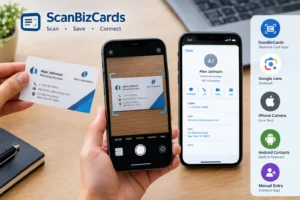
How to Save Business Cards Into Our Phone is a common question for people who want to manage their professional contacts easily. With apps like ScanBizCards, Google Lens, and built-in smartphone features, you can scan business cards and save names, phone numbers, email addresses, and company details directly to your phone. In this article, we will explore five easy ways to save business cards on Android and iPhone
Have you ever received a business card and wondered how to save its contact details directly to your smartphone? Saving business cards manually can take time, especially when you have multiple contacts to manage. Fortunately, there are several easy ways to store business card information on your phone without typing every detail.
If you want to learn how to save business card into our phone, you can use your phone’s camera, contact-saving features, or a business card scanning app like ScanBizCards. These methods help you organize names, phone numbers, email addresses, and company details in one place.
In this article, we will explore five simple ways to save business cards on Android and iPhone.
1. Scan Business Cards Using ScanBizCards
From controlling home appliances with apps to making payments via mobile phones, technology has simplified our daily routines.
How to save business cards to our phone using ScanBizCards:
- Install ScanBizCards from a trusted app store if it is available for your device.
- Open the app and choose its business card scanning feature.
- Place the business card on a flat surface with good lighting.
- Use your phone’s camera to capture the card.
- Review the extracted information and correct any errors.
- Save the contact within the app or export it to your phone’s contacts if that option is supported.
This method is useful for professionals, sales representatives, business owners, and people who frequently exchange business cards at meetings or networking events.
2. Use Your Phone’s Camera and Google Lens to save business cards to our phone
How to save business cards to our phone ?Google Lens is another convenient option for capturing information from a business card. It can recognize text in images and help you access phone numbers, email addresses, and other contact details.
How to save business cards into our phone using Google Lens:
- Open Google Lens or access it through a supported Google app.
- Point your camera at the business card or select a photo of the card.
- Allow Lens to recognize the text.
- Select the detected phone number, email address, or other relevant information.
- Choose an available action to create or save the contact.
This approach is useful when you do not want to install a dedicated business card scanning application. However, you may need to review and enter some details manually.
3. Save Business Cards Using Your iPhone Camera
iPhone users can use built-in text recognition features to extract information from business cards. Depending on your iOS version, Live Text can help you interact with text in photos and supported camera views.
Follow these steps:Open the Camera app or take a clear photo of the business card.
Open the Camera app or take a clear photo of the business card.
Open the photo in the Photos app.
Use Live Text when available to select recognized text.
Tap a detected phone number or email address to access its available actions.
Open the Contacts app and create a new contact.
Enter the person’s name and other details, then tap Done.
This method is convenient because it uses features already available on supported iPhones. You can save the contact without relying on a separate scanning app.
4. Scan Business Cards Using Android Contact Features
Many Android phones offer convenient ways to create contacts from information captured with the camera. Available features vary depending on the phone manufacturer, Android version, and installed apps.
How to save a business card into our Android phone:
- Open the Contacts app.
- Tap the option to create a new contact.
- Look for a scan, import, or image-recognition option if your phone supports one.
- Capture the business card or select an existing image.
- Check the recognized name, phone number, email address, and company details.
- Save the contact to your Google account or preferred contact storage.
If your Contacts app does not offer a scanning feature, use Google Lens or a dedicated business card scanning app instead.
5. Save Business Card Details Manually
If you receive only a few business cards, manually saving their information is another reliable option. This method also gives you greater control over how the contact is organized.
Here is how to do it:
- Open the Contacts app on your Android phone or iPhone.
- Tap Create Contact or the plus (+) icon.
- Enter the person’s full name.
- Add their phone number, email address, company name, and job title.
- Include the business address or notes if necessary.
- Save the contact.
Although manual entry takes longer than scanning, it allows you to check every detail before saving. It is especially useful when a business card contains unusual formatting or information that scanning tools cannot recognize correctly.
Tips for Saving Business Cards Accurately
When learning how to save business card into our phone, keep these tips in mind:
- Use good lighting: Clear images help scanning apps recognize text accurately.
- Keep the card flat: Avoid shadows, reflections, and blurred photos.
- Review the information: OCR technology can occasionally misread letters or numbers.
- Back up your contacts: Sync important contacts with your Google account or iCloud.
- Protect personal information: Check an app’s privacy policy and permissions before uploading business cards.
- Avoid duplicate contacts: Search your contact list before saving the same person again.
These simple practices can help you maintain an organized and reliable digital address book.

.webp)