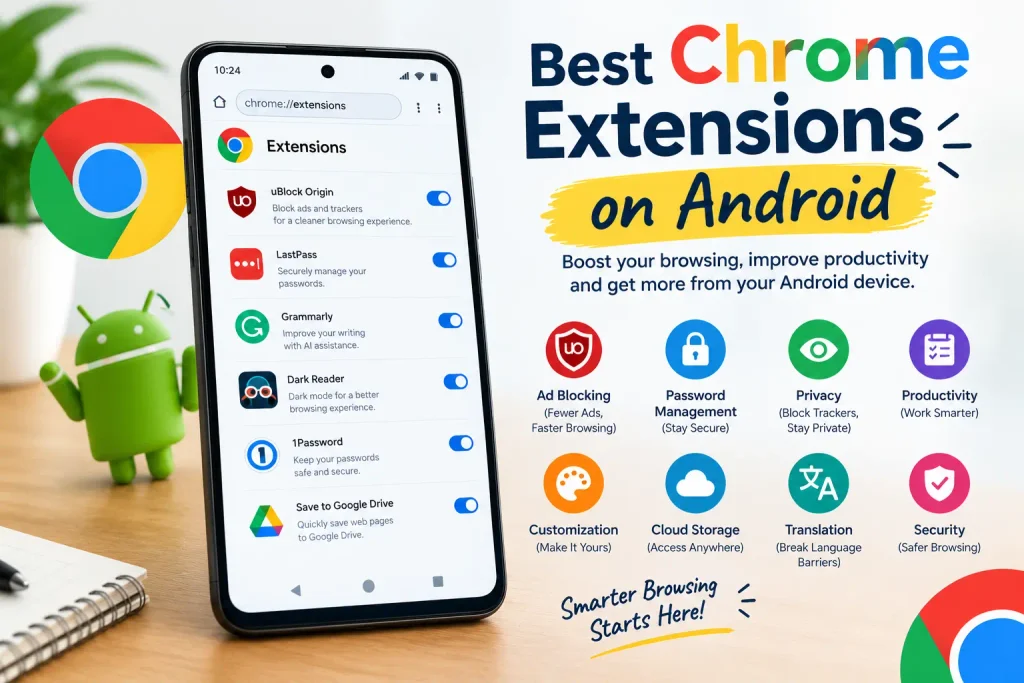
How to Use Chrome Extensions on Android: 5 Easy Methods
Chrome extensions are useful tools that help you block unwanted ads, improve productivity, manage passwords, and customize your browsing experience. On a computer, installing extensions is simple. However, if you try to install Chrome extensions on your Android phone, you may notice that the option is unavailable.
The good news is that you can use certain browser alternatives to access extension features on Android. In this guide, you will learn how to use Chrome extensions on Android, which browsers support them, and how to install them safely.
Why Use Chrome Extensions on Android?
Chrome extensions can make browsing easier by adding useful features to your browser. On a computer, users often install extensions to block advertisements, translate languages, manage passwords, check grammar, and improve productivity. Android users may also want these features while browsing on their smartphones.
Although the standard Chrome app for Android does not support desktop extensions, alternative browsers can provide similar functionality. By choosing a browser that supports compatible extensions or add-ons, you can customize your mobile browsing experience without needing a computer for every task.
For example, students can use translation tools to understand foreign-language websites, while bloggers can benefit from writing assistants and productivity tools. The available features depend on the browser and the extension you choose.
Best Types of Chrome Extensions to Use on Android
Before installing an extension, it is important to understand which types of tools may be useful on your smartphone. Different extensions offer different features, and not all desktop tools work properly on mobile browsers.
1. Ad Blocker Extensions: best chrome extensions on android
Ad blockers help reduce unwanted advertisements while browsing websites. They can make pages easier to read by limiting certain pop-ups, banners, and other advertising elements. Some content blockers may also reduce unnecessary page elements.
However, ad blocking does not guarantee that every advertisement will disappear. Websites may use different advertising technologies, and some sites may ask you to disable your blocker before viewing content.
2. Translation Extensions: best chrome extensions on android
Translation tools are useful when you visit websites written in unfamiliar languages. They can help you understand articles, instructions, and other online information without manually translating every sentence.
For students, researchers, and people who regularly read international websites, translation features can save time. Some browsers include translation tools by default, so installing a separate extension may not always be necessary.
3. Password Manager Extensions: best chrome extensions on android
Password managers help users organize their login credentials and create strong, unique passwords. Some password management services provide browser extensions or mobile integrations that make signing in more convenient.
When using a password manager on Android, choose a reputable provider and enable appropriate security protections. Never install an unfamiliar extension simply because it promises free password storage.
4. Grammar and Writing Tools: best chrome extensions on android
Grammar tools can help identify spelling mistakes, punctuation problems, and unclear sentences. They may be useful for bloggers, students, content writers, and professionals who frequently write online.
However, many writing extensions are designed primarily for desktop browsers. Before installing one on Android, check whether it supports your chosen browser and whether its editing features work on mobile websites.
5. Productivity Extensions: best chrome extensions on android
Productivity tools can help users organize tasks, save useful webpages, manage research, and simplify repetitive activities. Depending on the tool, you may be able to save articles for later reading or organize online information.
If you regularly create blog posts or conduct online research using your Android phone, these features can help you manage your work more efficiently.
How to Find Compatible Chrome Extensions for Android
Finding the right extension is an important step when learning how to use Chrome extensions on Android. An extension that works perfectly on a desktop computer may not work on a smartphone because mobile browsers have different technical limitations.
First, identify the feature you need. For example, decide whether you want an ad blocker, a translation tool, or a writing assistant. Then check whether your preferred Android browser supports that feature.
If you want to use an extension from the Chrome Web Store, open the store through a browser that supports compatible extensions. Search for the extension and review its description, permissions, and compatibility information before installing it.
Do not assume that every extension available in the Chrome Web Store can run on Android. Some extensions depend on desktop-specific interfaces, keyboard shortcuts, or browser features that are unavailable on mobile devices.
You should also check the browser’s official documentation for current extension support. Browser capabilities can change with updates, so information from older tutorials may no longer be accurate.
Common Problems When Using Chrome Extensions on Android
Sometimes, an extension may not install or work as expected. Understanding common problems can help you find a suitable solution without wasting time.
Extension Installation Option Is Missing
If you cannot find an installation option, your current browser may not support extensions. This is expected in the standard Chrome app for Android.
To solve this issue, check whether your browser supports extensions or switch to a compatible alternative. Remember that installing an extension through a desktop browser does not automatically make it available in Android Chrome.
The Extension Is Installed but Does Not Work
Some extensions install successfully but fail to work on certain websites. This can happen because the extension is designed for desktop browsers or requires permissions that are unavailable on mobile devices.
Try updating the browser, reviewing the extension’s settings, and checking its compatibility information. If the problem continues, look for a mobile-friendly alternative that offers similar features.
The Browser Becomes Slow
Extensions can consume memory and processing resources, especially when several tools run simultaneously. If your browser becomes slow after installing extensions, disable unnecessary tools and restart the browser.
Keeping only the extensions you regularly use can help maintain a smoother browsing experience.
The Extension Requests Unnecessary Permissions
Some extensions request access to website content or browsing activity. While certain permissions are necessary for an extension to work, others may be excessive for the feature being offered.
Review the permissions carefully before installation. If an extension requests access that does not seem necessary, consider choosing another tool.
Chrome Extensions vs. Built-in Android Browser Features
Before installing an alternative browser, check whether your current browser already provides the feature you need. Many modern mobile browsers include tools such as translation, private browsing, tracking protection, reader modes, and password management.
For example, if your main goal is to reduce unwanted advertisements, a browser with built-in content blocking may be more convenient than installing an additional extension. Similarly, built-in translation features can be sufficient for reading foreign-language articles.
Extensions are more useful when you need a specific feature that your browser does not provide. However, using fewer add-ons can simplify browser management and reduce compatibility problems.
The best choice depends on your browsing habits, preferred features, and the level of customization you need.
Tips for Getting the Best Experience with Android Extensions
Follow these practical tips to make extension-based browsing more convenient.
- Choose a reliable browser: Use a browser with clearly documented extension support and regular security updates.
- Install only necessary extensions: Avoid adding tools you rarely use.
- Check compatibility first: Confirm that the extension works with your browser’s Android version.
- Review permissions: Understand what information an extension can access before approving it.
- Keep everything updated: Install browser and extension updates when available.
- Test extensions individually: If something stops working, temporarily disable recently installed extensions to identify the problem.
- Protect your personal information: Avoid untrusted extensions that request sensitive information without a clear reason.
These simple practices can help you get more value from your Android browser while reducing potential security and performance issues.
Frequently Asked Questions About Chrome Extensions on Android
Can I use Chrome Web Store extensions on my Android phone?
Some alternative Android browsers support selected Chrome Web Store extensions. However, the standard Google Chrome app for Android does not support desktop extensions directly, and compatibility varies by browser and extension.
Is it necessary to root an Android phone to install extensions?
No. You generally do not need to root your Android phone to use extensions supported by a compatible browser. Rooting your device introduces additional security risks and is unnecessary for ordinary extension use.
Are Chrome extensions free to use on Android?
Some extensions are free, while others require a subscription or payment for premium features. Check the extension’s official listing for its pricing, limitations, and available features.
Can extensions improve Android browsing speed?
Some extensions may improve the browsing experience by blocking certain unwanted content. However, extensions can also consume system resources and slow down a browser. The effect depends on the extension, website, and device.
Can I use desktop Chrome extensions on every Android browser?
No. Browser support varies. Some Android browsers support selected extensions, while others do not support extensions at all. Even supported extensions may have limited functionality on mobile devices.
Can You Use Chrome Extensions on Android?
No, the standard Google Chrome app for Android does not support installing and running desktop Chrome extensions directly. However, some alternative mobile browsers support extensions or add-ons, allowing you to access similar features on your smartphone.
1. Use Yandex Browser to Install Chrome Extensions
Yandex Browser is one option for users who want to try Chrome Web Store extensions on Android.
Steps to install extensions:
- Download Yandex Browser from the official Google Play Store.
- Open the browser on your Android phone.
- Visit the Chrome Web Store.
- Search for the extension you want to use.
- Open its page and select the installation option if available.
- Follow the on-screen instructions to complete the installation.
Once installed, open the browser’s menu or extensions section to access the tool. Remember that not every desktop extension will work correctly on a mobile device.
2. Try Quetta Browser
Quetta Browser is another alternative that supports extensions on compatible versions.
Follow these steps:
- Install Quetta Browser from a trusted source.
- Open the browser and look for its Extensions section.
- Search for the extension you need.
- Tap Install and confirm the required permissions.
- Open a website and test whether the extension works properly.
This method can be useful if you want features such as content blocking, dark mode, or additional browsing tools.
3. Use Firefox for Android Add-ons
Firefox for Android supports compatible extensions through its own add-on system. Although these are not necessarily Chrome extensions, many offer similar functionality.
How to install Firefox add-ons:
- Download Firefox for Android.
- Open Firefox and tap the three-dot menu.
- Select Add-ons or Extensions.
- Choose an available add-on.
- Review its permissions and tap Add to install it.
Firefox is a good option for users who want to enhance their mobile browsing experience without relying on the standard Chrome app. Some add-ons may have limited functionality on Android.
4. Access Chrome Extensions Through a Desktop Computer
If a particular extension does not work in mobile browsers, using a computer is often the most reliable solution.
You can install the extension in desktop Chrome and access that computer remotely from your Android phone using a compatible remote-access application.
This option is especially helpful for extensions that require desktop features, advanced website editing, or a full browser interface.
5. Choose the Right Browser for Your Needs
Before installing a new browser, consider what you want to achieve.
- Ad blocking: Look for a trusted browser or compatible extension that blocks unwanted advertisements.
- Dark mode: Choose a browser or add-on that supports dark themes for websites.
- Productivity: Search for extensions that help with writing, translation, or organizing tasks.
- Privacy: Review the permissions requested by each extension before installing it.
Not all extensions are compatible with mobile browsers, so check compatibility before relying on a particular tool.
Is It Safe to Use Chrome Extensions on Android?
Using extensions can improve your browsing experience, but safety should always come first. Some extensions request access to browsing activity or information displayed on websites.
Follow these precautions:
- Install browsers and add-ons from trusted sources.
- Review permissions before approving an installation.
- Avoid unfamiliar extensions that request unnecessary access.
- Keep your browser updated.
- Remove extensions you no longer use.
These steps can help you reduce privacy risks while enjoying additional browser features.
Frequently Asked Questions (FAQs)
Can I install Chrome extensions directly in Chrome on Android?
No. The standard Chrome app for Android does not support desktop best Chrome extensions on android directly. You need a compatible alternative browser to use supported extensions.
Which Android browsers support extensions?
Yandex Browser and Quetta Browser are options to investigate for Chrome Web Store compatibility. Firefox for Android supports compatible add-ons through its own extension system. Availability and functionality may vary by version.
Can I use Chrome extensions without a computer?
Yes. You can use compatible best chrome extensions on android through supported Android browsers without needing a computer. However, some extensions require desktop functionality and may not work on mobile devices.
Do Chrome extensions work on every Android phone?
Compatibility depends on the browser, Android version, and individual extension. Some tools may install successfully but provide limited functionality.
Conclusion
Learning how to use best Chrome extensions on Android can help you customize your mobile browsing experience and access useful features. Although the standard Google Chrome app does not directly support desktop extensions, alternative browsers such as Yandex and Quetta may support selected Chrome Web Store extensions, while Firefox offers its own collection of add-ons.
Choose a trusted browser, install only compatible extensions, and review permissions carefully. With the right setup, you can enjoy more flexible browsing on your Android phone.