How to Reset Network Settings on Android: A Simple Step-by-Step Guide
Introduction
Are you experiencing Wi-Fi connection problems, mobile data issues, or Bluetooth connectivity errors on your smartphone? Resetting your network settings can help resolve many common connection problems without deleting your personal files. Learning how to reset mobile network settings android devices support is useful for anyone who wants to restore normal connectivity. The process is simple, but the exact steps may vary depending on your phone brand and Android version.
Table of Contents
What Does Resetting Network Settings Mean?
Network settings control how your smartphone connects to Wi-Fi networks, mobile data services, Bluetooth devices, and other connectivity features. When these settings become incorrect or corrupted, you may experience frequent disconnections or difficulty accessing the internet.
Choosing to reset mobile network settings android users have available can help restore relevant network configurations to their default state. Depending on the device and reset option, this may remove saved Wi-Fi networks and passwords, paired Bluetooth devices, and customised mobile network settings.
It is important to understand that this process does not normally delete photos, videos, contacts, applications, or other personal files. However, you may need to reconnect to your Wi-Fi network and pair your Bluetooth accessories again.
How to Reset Network Settings on Android
Follow these steps to reset network settings on most Android smartphones.
Step 1: Open the Settings App
Unlock your smartphone and open the Settings application. You can usually find its gear-shaped icon on the home screen or in the app drawer.
Before you reset mobile network settings android devices offer, ensure that you know your Wi-Fi password and have saved any important connectivity information.
Step 2: Find the Reset Option
Scroll through the Settings menu and look for options such as System, General management, Additional settings, or Reset options.
The menu name depends on your smartphone manufacturer. Google Pixel phones generally place reset options under System, while Samsung Galaxy phones commonly provide them under General management.
If you cannot find the option, use the search bar at the top of Settings and search for “Reset network settings.”
Step 3: Select Network Reset
Open the appropriate reset menu and select the option related to network settings. It may be labelled Reset Wi-Fi, mobile and Bluetooth or Reset network settings.
Read the description carefully before continuing. Some phones provide separate options for resetting mobile network settings and resetting all Wi-Fi and Bluetooth settings.
When you reset mobile network settings android provides, make sure you select the option that matches the connection problem you are trying to solve.
Step 4: Confirm the Reset
Your phone may request your PIN, password, or fingerprint to confirm the action. Follow the on-screen instructions and confirm the reset.
Wait for the process to finish. Some devices may restart automatically, while others apply the changes immediately.
After you reset mobile network settings android has available, reconnect to your Wi-Fi network, enable mobile data if necessary, and pair your Bluetooth devices again.
Step 5: Test Your Connection
Open a website or application to check whether your internet connection works properly. If you were experiencing mobile data problems, check whether your phone displays a network signal and can access the internet.
For Wi-Fi issues, reconnect to your router and enter the correct password. If the problem continues, restart your phone and router before trying additional troubleshooting steps.
How to Reset Mobile Network Settings on Samsung
Samsung Galaxy smartphones use a slightly different Settings menu from some other Android devices.
- Open Settings on your Samsung phone.
- Tap General management.
- Select Reset.
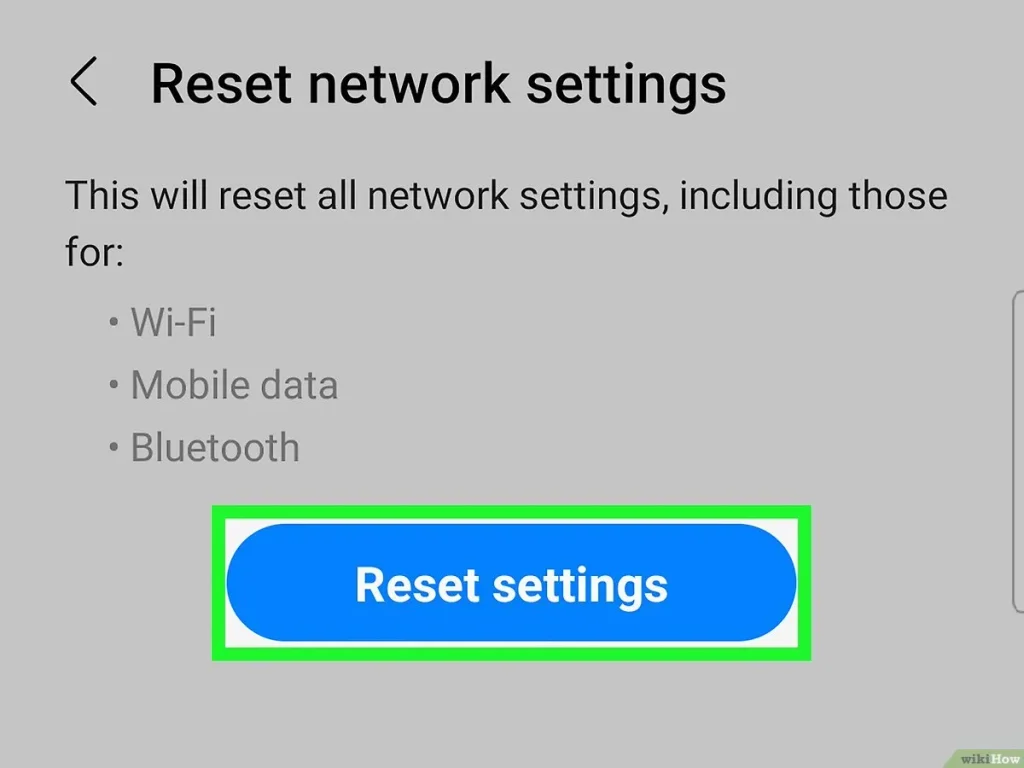
- Choose Reset mobile network settings or Reset Wi-Fi and Bluetooth settings, depending on the available options.
- Review the information displayed on the screen.
- Tap Reset settings and confirm if requested.
The exact labels can vary by model and software version. If your phone offers separate reset options, choose carefully because resetting mobile network settings may not reset Wi-Fi and Bluetooth connections.
This method is helpful when you need to reset mobile network settings android phones use to manage cellular connectivity, especially when mobile data stops working or network settings have been changed accidentally.
When Should You Reset Network Settings?
Resetting network settings is worth considering when basic troubleshooting does not solve your connectivity problem.
Mobile data is not working: If your phone shows a mobile signal but cannot access the internet, incorrect network configurations may be contributing to the problem.
Wi-Fi keeps disconnecting: A network reset may help when your phone repeatedly struggles to connect to saved wireless networks.
Bluetooth pairing problems: If your phone cannot connect to headphones, speakers, or other accessories, resetting Bluetooth-related settings may help.
Network settings were changed: If you recently modified connection settings and cannot remember the original values, a reset can restore default configurations.
Before you reset mobile network settings android offers, try turning Airplane mode on and off, restarting your phone, and checking whether your mobile operator is experiencing an outage.
What Happens After Resetting Network Settings?
A network reset affects connectivity configurations rather than the entire phone.
Depending on the reset option, your device may remove saved Wi-Fi passwords, forget Bluetooth pairings, and restore mobile network preferences. You may need to reconnect to your wireless network and configure certain connection settings again.
Your personal data, such as photos, contacts, messages, and downloaded applications, is generally not deleted by a network settings reset.
If you use a VPN or customised access point name (APN), check whether its settings need to be entered again. Some devices may restore default cellular configurations automatically, while others may require assistance from your mobile operator.
Knowing what to expect before you reset mobile network settings android provides helps you avoid confusion when your phone reconnects to networks for the first time.
Additional Tips to Fix Android Network Problems
If resetting network settings does not solve the issue, try these additional solutions.
- Restart your smartphone: A restart can clear temporary software glitches affecting connectivity.
- Check Airplane mode: Make sure Airplane mode is turned off and mobile data is enabled.
- Inspect your SIM card: Ensure the SIM card is inserted correctly and recognised by your device.
- Check your data plan: Confirm that your mobile data allowance is available and your plan is active.
- Update Android: Install available software updates that may include connectivity fixes.
- Contact your network provider: Ask whether there are local outages or account-related restrictions.
If the issue continues after you reset mobile network settings android devices provide, your SIM card, carrier configuration, router, or phone hardware may need further investigation.
Conclusion
Resetting network settings is a straightforward way to troubleshoot common Wi-Fi, mobile data, and Bluetooth problems on Android smartphones. Open Settings, locate the appropriate reset menu, select the network reset option, and follow the on-screen instructions.
Remember that the available options vary by manufacturer and Android version. Save your Wi-Fi password before proceeding, and check your connectivity after the reset. If the issue persists, try additional troubleshooting steps or contact your mobile network provider for assistance. Learning how to reset mobile network settings android devices support can help you restore connectivity without performing a factory reset or deleting your personal files.